
Finding the matching category
You have to look up, product by product, which Trendyol category each one belongs to.
Pick a category; Entegi checks the products against the rules of Trendyol and you send the ready ones in a single run.
7 days free, no credit card required

Preparing the products is not the slow part. Getting every product into the shape Trendyol expects is.
You have to look up, product by product, which Trendyol category each one belongs to.
The marketplace makes certain attributes mandatory in some categories. An empty one keeps the product from being sent.
Your brand and variant values have to match their counterparts on the marketplace.
When a missing image or a zero price is noticed only after the send, the same work is done again.
The Toplu Gönder (bulk send) page under Toplu İşlemler has three steps. This is what you do once your Trendyol account is connected and your products are in the panel.
Only connected marketplaces with sending switched on are listed. If Trendyol is missing, turn on the “Durum” and “Ürünleri Gönder” switches in the Trendyol form under Tercihler.
Tick one or more of the XML source, category, brand and tag boxes. You can also select the whole catalogue. Then run the check.
Entegi checks the selected products against the rules of Trendyol and shows how many are ready. You send the ready ones; the send runs in the background.
7 days free, no credit card required
Entegi matches the category, the brand, the required attributes and the variants to their counterparts on the marketplace. You review the result and change what you find wrong.
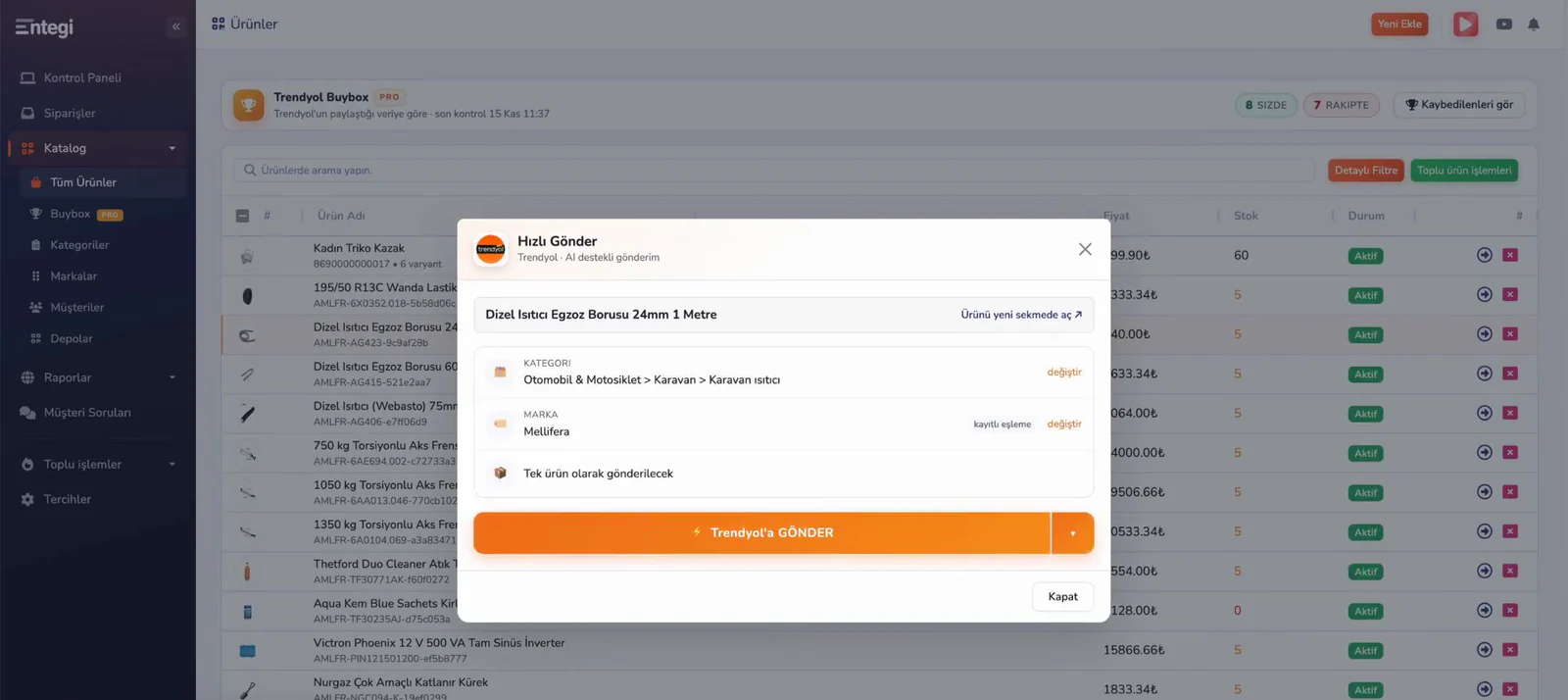
The check result tells you which product is waiting and why, before anything is sent.
The check result shows how many products are ready to send. The rest wait until their gaps are fixed; you can send the ready ones without waiting.
The marketplace does not accept a product without an image. A product with a sale price of zero is likely to be rejected. A product with zero stock is sent but listed as closed for sale.
The report shows how many products were checked, sent and failed. Earlier sends are under the Gönderim Geçmişi (send history) tab, where failed products are listed with their reasons.
Your products are stored once in the panel. The bulk send page lists your connected marketplaces with sending switched on; for another marketplace you select its card.
Leave your name and phone number and we will call you to answer your questions about bulk sending to Trendyol.
If you would rather not wait, call us:+90 (216) 599 1500
Connect your Trendyol account, pick a category and read the check result.
7 days free, no credit card required