


Your marketplace stores stay in place
You connect your store with the API details from your seller panel. You do not open a new store or account.
Switching to Entegi
When you move to Entegi from another integration tool or from manual work, the products already on the marketplace are left untouched.
7 days free, no credit card required
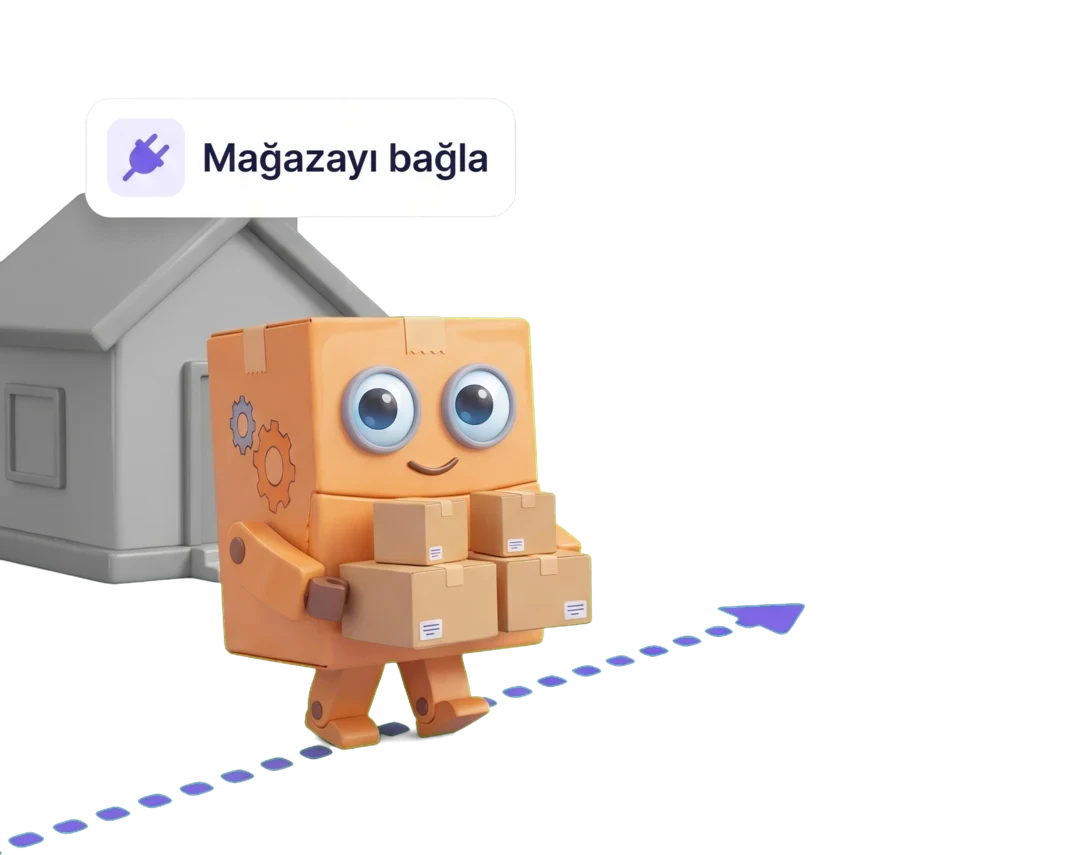
Switching does not mean rebuilding your stores. Your marketplace accounts stay the same; what changes is the panel you manage them from.
You connect your store with the API details from your seller panel. You do not open a new store or account.
You import the products of your store into the panel. You can also use an XML link or an Excel file.
The products you added to the marketplace earlier are matched with the products in the panel and show as sent there.
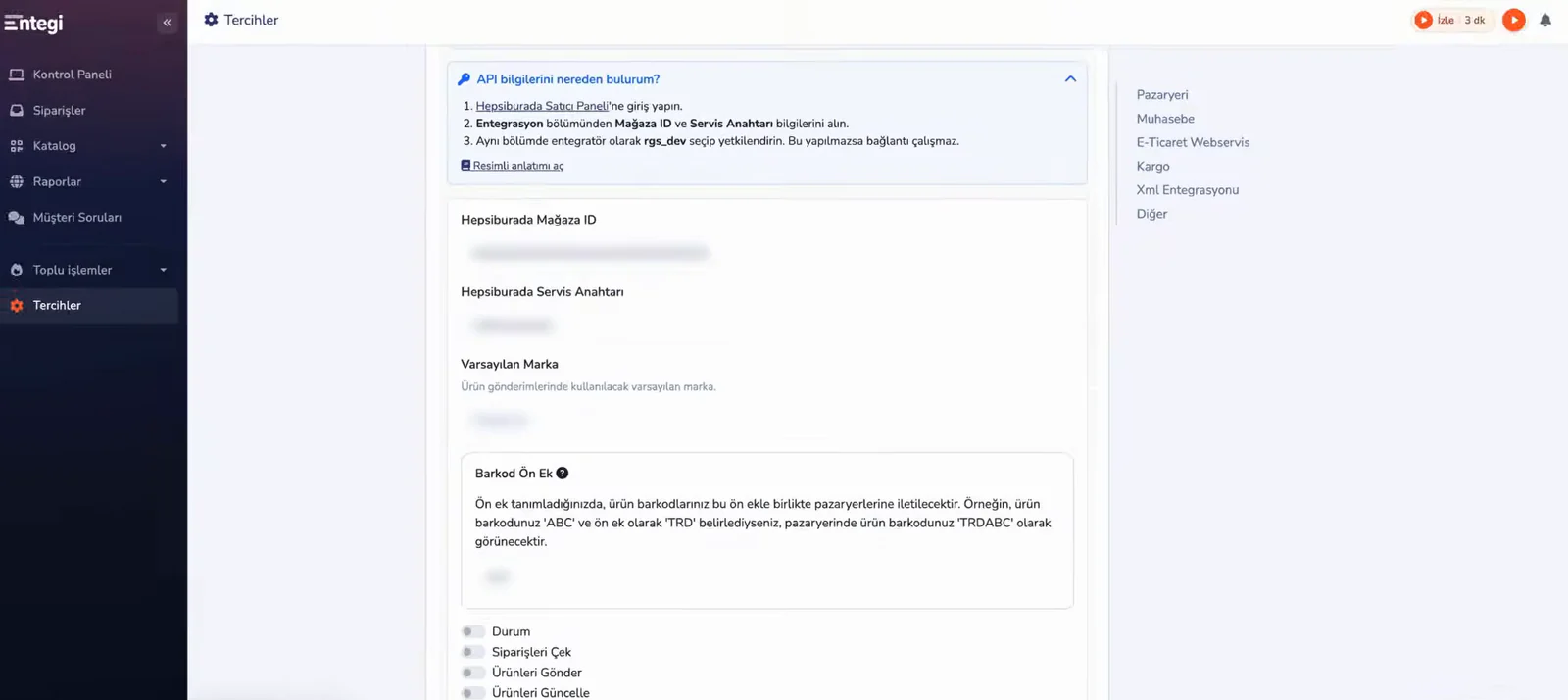
While the Siparişleri Çek (pull orders) switch in the integration form is on, your marketplace orders arrive in the panel automatically.
On first sign-in you choose between a demo and the real setup. The setup screen then walks you through marketplace, products and check in order; you can stop at any point and continue later.
On your first sign-in, the Demo ürünlerle dene option opens the panel with sample products. You can try everything and nothing is sent to a marketplace.
Choose the marketplace you sell on, then enter your API details and your cargo company. The connection is checked; you can add other marketplaces later.
Import the products of your marketplace store, or add them with an XML link. You set the profit rate, stock margin and cargo fee; category, brand and attributes are matched automatically.
The last step shows how many products are ready to send and how many need fixing. You complete the missing matches and confirm the send.
7 days free, no credit card required
Start from wherever your catalogue lives today.
If your products are already on the marketplace, Ürünleri Getir imports them into the panel and you manage price, stock and orders from there. The button is in the Trendyol and Hepsiburada settings forms.
See the Trendyol integrationYou paste the XML link and verify it; Entegi counts the products in it and recognises fields such as product name, price and stock. Depending on your plan you connect 1, 5 or 10 XML sources.
See the XML integrationYou add and update products in bulk with an Excel file. You can also export the products in the panel to Excel.
See the Excel integrationYou connect your Shopify, WooCommerce, Wix, ikas or OpenCart site to the panel. E-commerce site integrations are part of the Professional and Business plans.
See the e-commerce integrationsBefore you go live
The one thing that needs care in a switch is that two systems never manage the same product at the same time.
If you have already sent products to the marketplace, do not change the barcode prefix. If you do, stock and price updates of the existing products stop working.
Run Ürünleri Eşleştir (match products) before you turn on the Ürünleri Gönder and Ürünleri Güncelle switches. It asks for your confirmation before it starts.
Siparişleri Çek (pull orders), Ürünleri Gönder (send products) and Ürünleri Güncelle (update products) are separate switches in the integration form. You decide what starts and when.
While Ürünleri Güncelle is on, stock and price changes are sent to the marketplace. Before you turn it on, turn off stock and price updates in your previous tool.
After the switch
A switch is more than a new panel; the way you send products and see what you earn changes too.
AI matches the category, brand and variants of your product with the marketplace. You check and send.
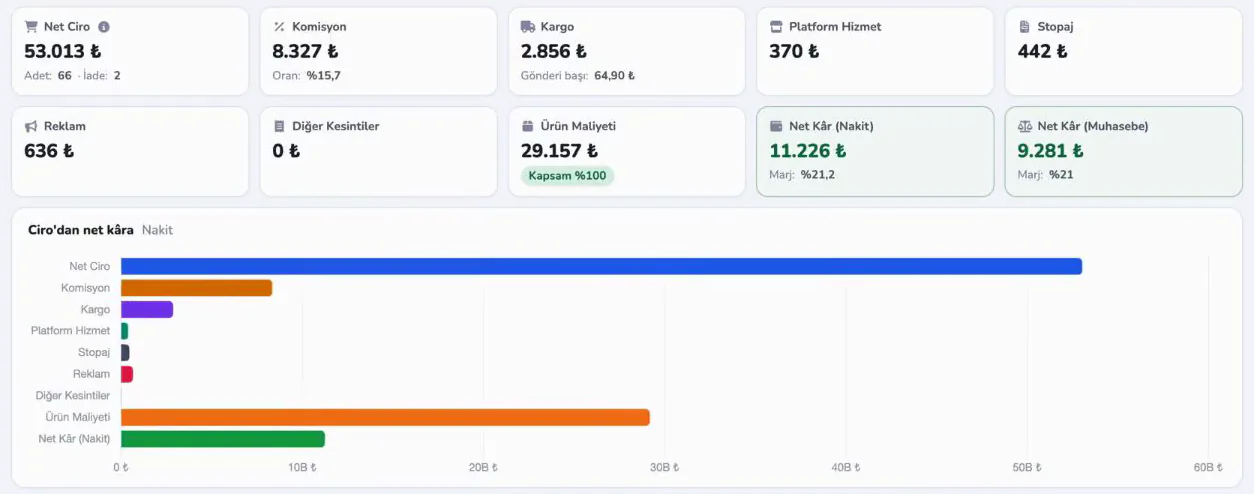
The profit report deducts commission, cargo, withholdings and product cost from revenue and shows the net profit.
You define price and stock rules for each marketplace.
You do the setup yourself. Where you get stuck, you reach our team in these ways.
You open a request on the support page of the panel and set its priority to normal or urgent.
Step-by-step tutorial videos, in Turkish, cover connecting a marketplace, importing products and tracking sends.
If training appointments are enabled for your account, you book a one-to-one training appointment from the panel.
If you would like to talk before you start, call us on the numbers below.
Watch the steps in the Entegi panel in short tutorial videos (in Turkish).
Sign up and open the panel with sample products. When you are ready, you connect your store and bring your products into the panel.
7 days free, no credit card required